
For a rob run crash on launch fix, start by closing unused applications and restarting your PC, following the official crash advice. If the game instead fails to load or keeps freezing, the official checklist also covers your connection, Steam, graphics driver, and installed files. Where an error code appears, use its matching instructions below; if crashes continue, send support your PC specifications, a crash description, and the exact error message.
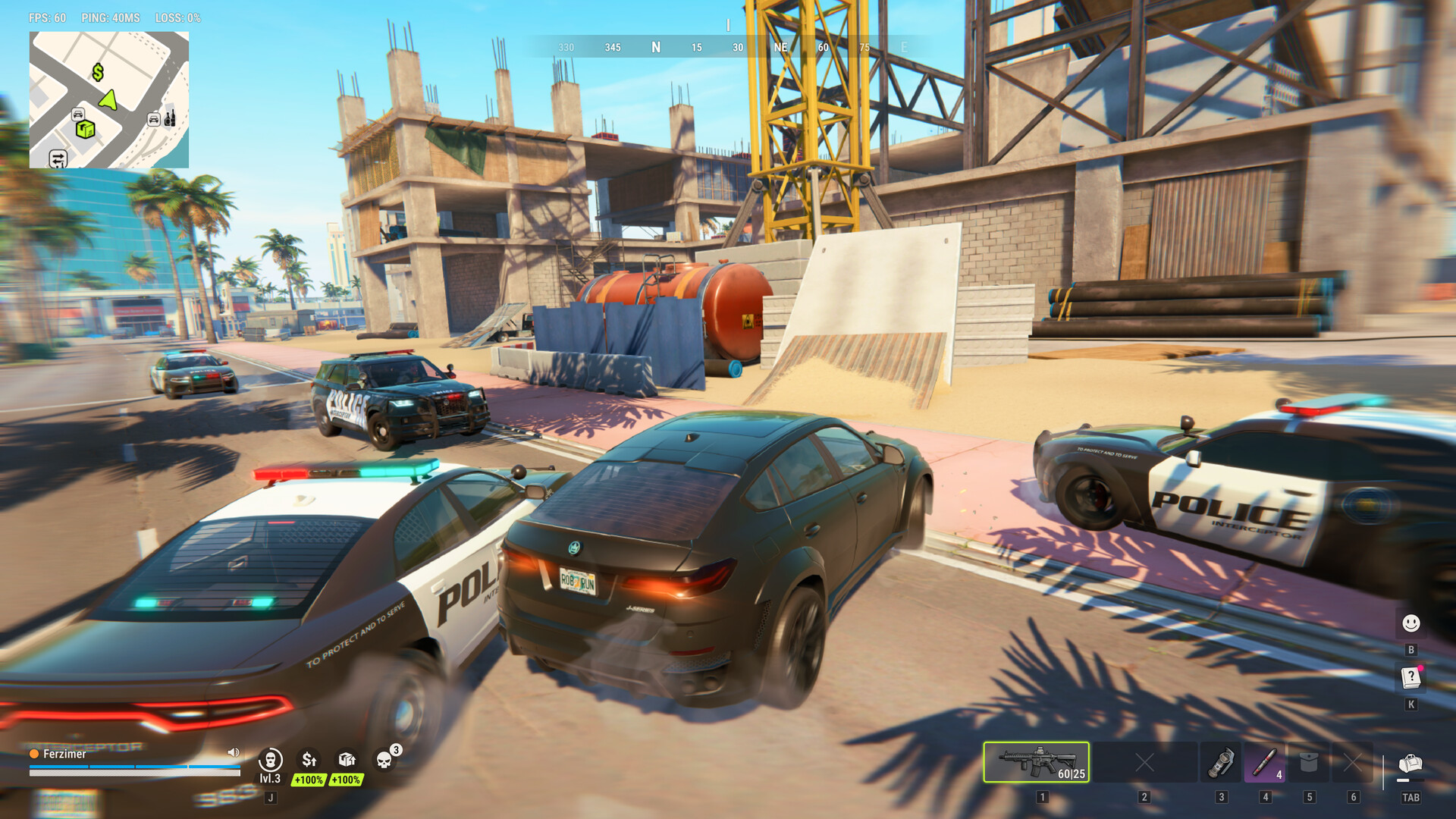
Start with the crash or loading checklist
Close applications you are not using, then restart your computer before trying ROB RUN again. This is the official starting advice for crashes, so it gives you a concrete first action even when no error code appears. It does not identify the cause of your particular crash or promise that a restart will resolve it. If another launch produces a message, keep its exact wording for the relevant checks and any later support request.
For a game that will not load or repeatedly freezes, check your internet connection and restart both ROB RUN and Steam. The official checklist for those symptoms also says to update your graphics driver and verify the game files. In Steam, open the game's Properties, select Installed Files, and choose Verify integrity of game files. Use this sequence for the loading or freezing symptoms it addresses, while checking any displayed code for more specific instructions.
Compare your PC with the published requirements
Both the minimum and recommended configurations require a 64-bit version of Windows 10 or newer, DirectX 11, an internet connection, and 20 GB of available storage. The minimum processor is an Intel Core i5-6600K or AMD Ryzen R5 1600, with 12 GB RAM. The listed minimum graphics options are NVIDIA GeForce GTX 1050 Ti, AMD Radeon RX 580, or Intel Arc A380. Check each part of the configuration when comparing your PC, including the operating system and available storage.
The recommended processor is an Intel Core i5-9600K or AMD Ryzen 5 3600, paired with 16 GB RAM. Recommended graphics options are NVIDIA GeForce RTX 2070, AMD Radeon RX 5700 XT, or Intel Arc B570. These are the recommended hardware entries, while the shared Windows, DirectX, connection, and storage requirements still apply. Record your actual specifications for support if the crash persists; the published requirements alone do not explain why a particular launch failed.
Check connection and download error codes
E-0101 and E-0110 mean ROB RUN cannot connect to the server to download configuration or startup data. The official response is to check your internet connection and make sure websites load correctly. If either code appears during launch, follow that connection check rather than interpreting the code as a hardware diagnosis. Keep the code with the full message if the problem continues and you need to describe the failed launch to support.
E-0102 means downloaded data contains errors or was blocked on its way to your PC. The official explanation names guest networks, including hotel, cafe, and public Wi-Fi connections, as well as antivirus or firewall interference. Its listed remedies are switching to a home network without an authorization page, disabling a proxy, or temporarily pausing HTTPS scanning in antivirus settings. The antivirus setting mentioned for this code is specifically HTTPS scanning; keep that distinction when following the instructions.
Resolve asset and version errors
E-0124 identifies an internal game asset loading system error, and the official remedy is to verify file integrity through the game's Steam Properties. Open Properties, select Installed Files, and choose Verify integrity of game files. E-0301 and E-0302 have a different meaning: the installed game version is outdated. For either outdated-version code, close ROB RUN, restart Steam, and update the game.
E-0303 and E-0304 mean downloaded game data is corrupted or does not match the current game version. For these codes, the official instructions are to wait 10–15 minutes, disable a proxy, verify file integrity through Steam Properties, and update the game. The waiting period belongs to this particular pair of errors, so it should not be presented as a general crash remedy. Match the complete code before applying that instruction, especially when distinguishing these data errors from the outdated-version messages.
Handle Steam and Epic Online Services authorization
E-0401 means Steam account authentication failed, so check that Steam is in online mode and signed into the correct account. The official instructions then say to restart Steam and the game. E-0403 and E-0404 instead identify authorization issues involving Epic Online Services. For that pair, verify files through Steam, add the game to your antivirus exceptions, and restart your PC.
E-0405 means Steam is not responding or an antivirus has blocked the game's system library. The official instructions are to check your antivirus quarantine, launch Steam, and verify the integrity of the game files. Then launch ROB RUN directly from your Steam library, as specified for this error. That quarantine check belongs to E-0405, while the online-mode and correct-account checks above address E-0401.
Follow the specific anti-cheat and input-device fixes
E-0501 and E-0502 mean Easy Anti-Cheat is not running, is corrupted, or is blocked by third-party software. For these codes, the official instructions list launching exclusively through Steam, stopping your antivirus, verifying file integrity through Steam Properties, and restarting the PC. The instruction to stop antivirus software is specific to this error pair and should not become the default response to every launch crash. In particular, distinguish it from the temporary HTTPS-scanning pause listed for E-0102 and the game exception listed for E-0403 or E-0404.
E-0601 means basic input devices, such as a keyboard and mouse, were not detected. The official explanation says this often occurs when using Remote Desktop or cloud streaming services. Connect a physical keyboard and mouse directly to the PC before launching ROB RUN, and avoid remote access sessions. This advice addresses the device-detection error, so apply it when E-0601 matches the message you actually receive.
Send support the details if crashes continue
If ROB RUN continues crashing, the official guidance is to send support your PC specifications, a description of the crash, and the error message text. For a launch failure, describe what happens when you try to open the game rather than reporting only that it does not work. Copy the message exactly, including any code, so the description preserves the information the game displayed. Keep your actual PC specifications alongside that description; those details are part of the requested support information even after you have tried the applicable checks.